

Read the News
- Web
- iPhone and iPad
Choose News in the main menu on the left, just below Today, to see your school’s news, with pinned posts at the top. Important posts can appear as a banner at the top of Today for a few days. If the school allows it, you can close a banner; the post stays in News.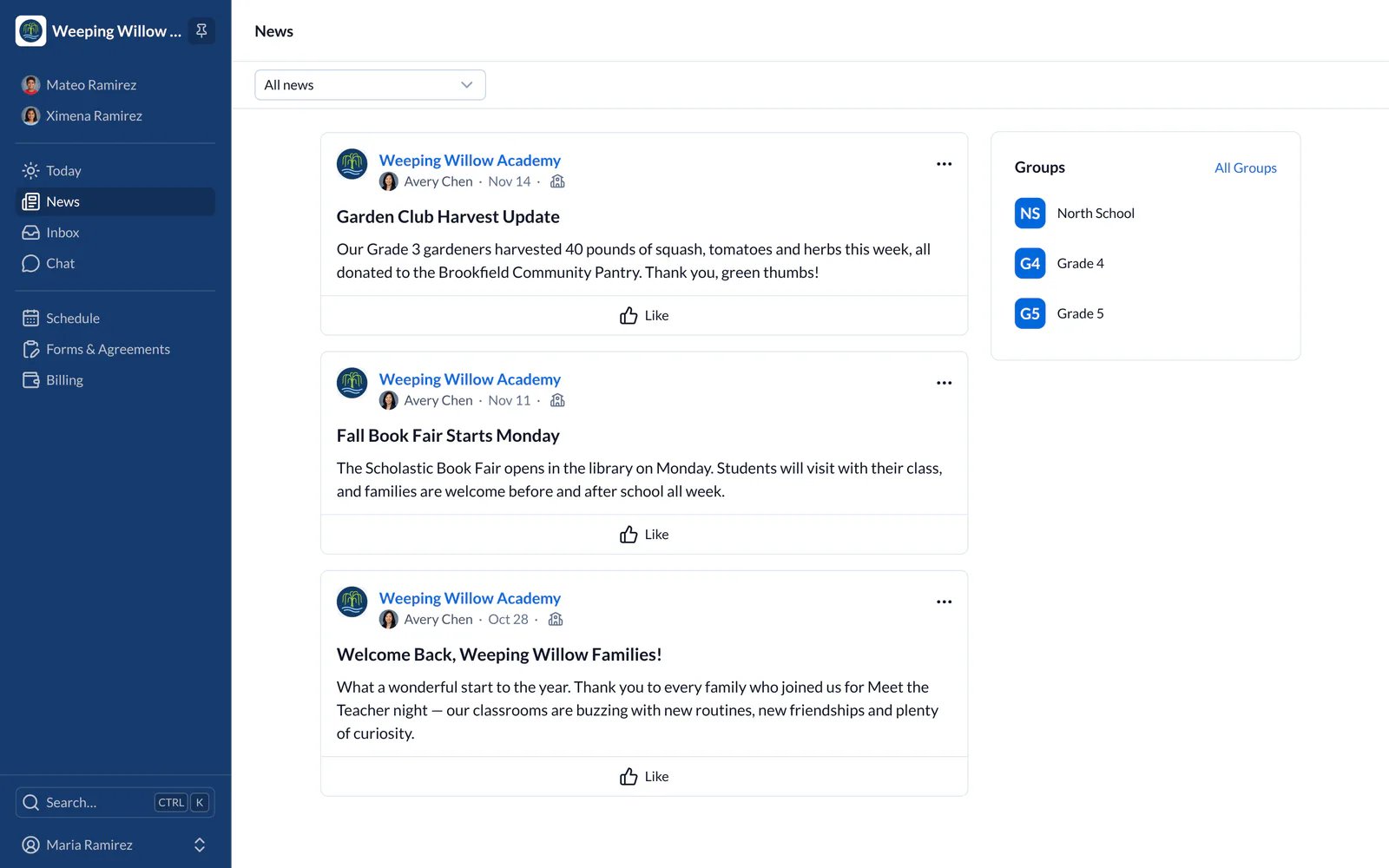
React and Reply in Chat
- Web
- iPhone and iPad
Choose Like under a post to like it, or point at Like to choose Love, Celebrate or Wow instead; choose your reaction again to take it back. Everyone sees how many reactions a post has, and only the people who run it see who reacted. When the author allows it, choose Reply in Chat to answer the post in a private chat with them or the school. Other families don’t see your reply.
For Staff: Post News
- Web
- iPhone and iPad
- In News, choose Post News.
- Write a title and your post, and add photos or files. Only show students whose families have agreed to photos and videos.
- Choose Show as a banner on Today to put the post at the top of everyone’s Today page.
- Choose Publish. The first time, you can also send it by email or text message.
For Staff: Change or Remove a Post
- Web
- iPhone and iPad
Edit a published post and publish your changes; readers see that it was edited. You can pin up to three posts to the top. Removing a post takes it out of everyone’s news, and you can bring it back from News › Posts.