

Where It Is
- Web
- iPhone and iPad
In Communications, choose Website. If your school hasn’t made one yet, choose Set Up Website. If your plan doesn’t include a website, the page says which plans do.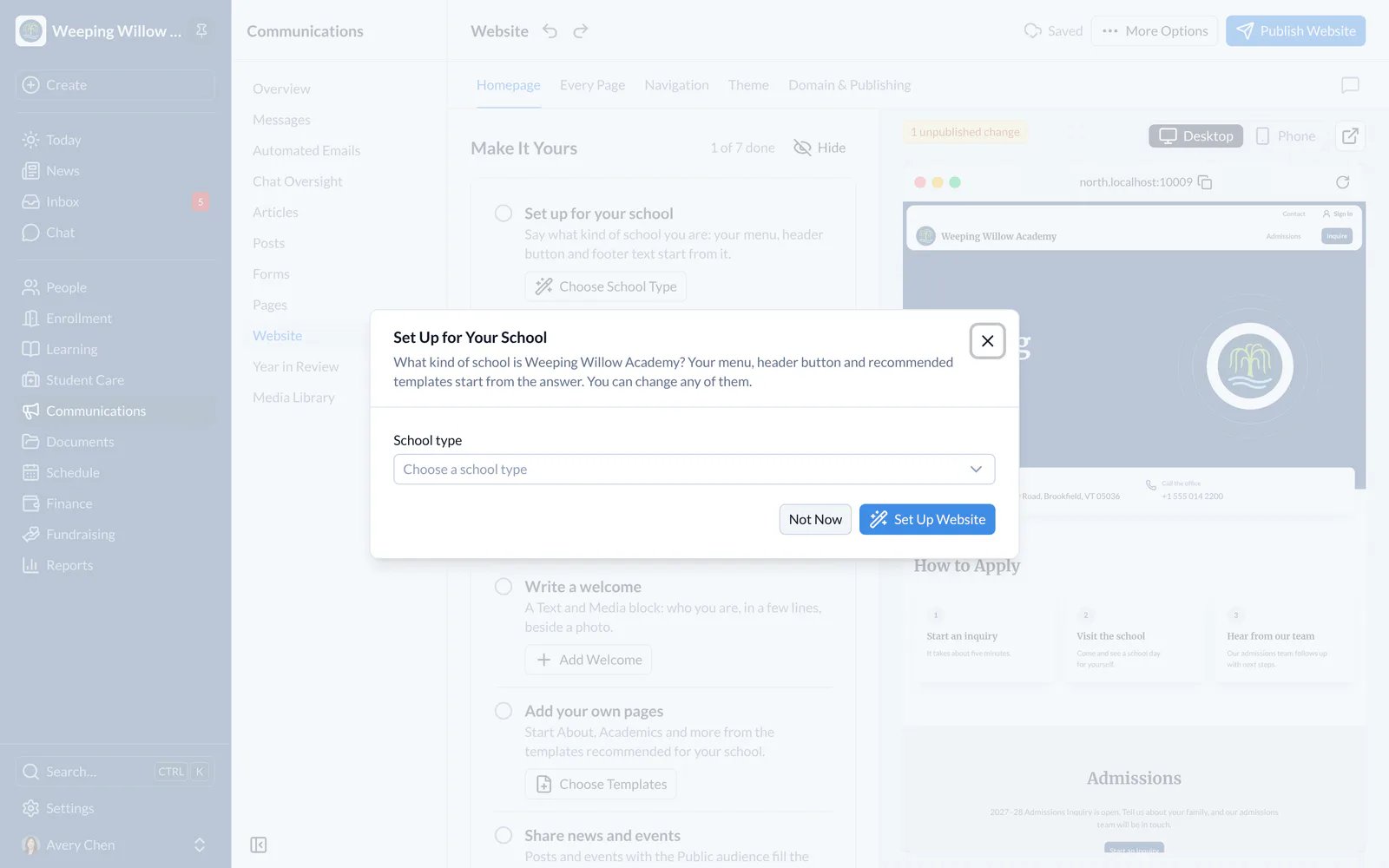
- Web
Change the Homepage
- On the Homepage tab, choose Add Block to add a section, such as News, Events, a Gallery or your own words and photos.
- Choose Edit on a block to change its words, images and options. Drag a block by its handle, or use Move Up and Move Down, to change the order.
- Your changes save as you go, as a draft. Visitors don’t see them until you publish.
Every Page, Menu, Look and Address
Every Page holds the blocks at the foot of every page. Navigation sets the menu and the footer. Theme sets the fonts, colors and shapes. Domain & Publishing sets the website’s address and connects your school’s own domain.Publish Your Changes
- Choose Preview to see the draft at its own private address.
- When it’s ready, choose Publish Changes. Visitors see the new version straight away.
- To throw away everything since you last published, choose Discard Changes under More Options.