Write and Send It
- Web
- iPhone and iPad
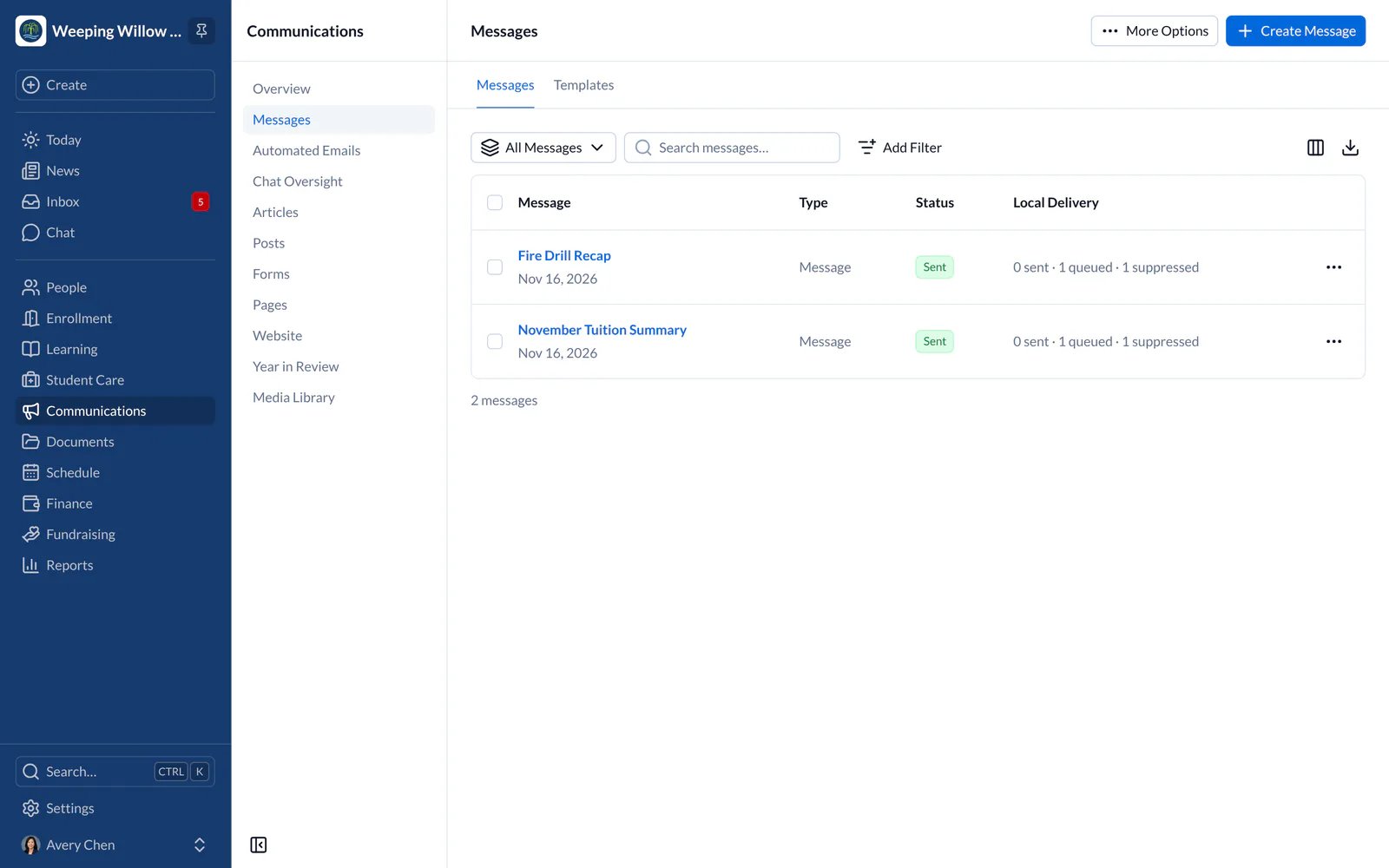
- In Communications, choose Create Message, then a template or Start from Scratch, and choose the kind of message.
- Type the subject at the top of the page. The message saves as you write, and Undo and Redo sit beside the subject.
- Choose who gets it: classes, students, people or lists. Teachers can send to their own classes and class lists.
- Choose how it’s sent: email, text message or a notification in the app. Everyone you choose can also read it in their Inbox.
- Choose Preview to see the message and the people it will go to. Choose Send to check the list once more, then send it now or schedule it for later.
After It Is Sent
- Web
- iPhone and iPad
Open the message to see who it reached, and download those details as a spreadsheet. Copy a message to reuse it, or save it as a template. With Replies in Chat, families can answer you in a private chat; it’s set to you for messages to classes and chosen people, and you can turn it off after sending.