

Turn Cue On
- Web
- iPhone and iPad
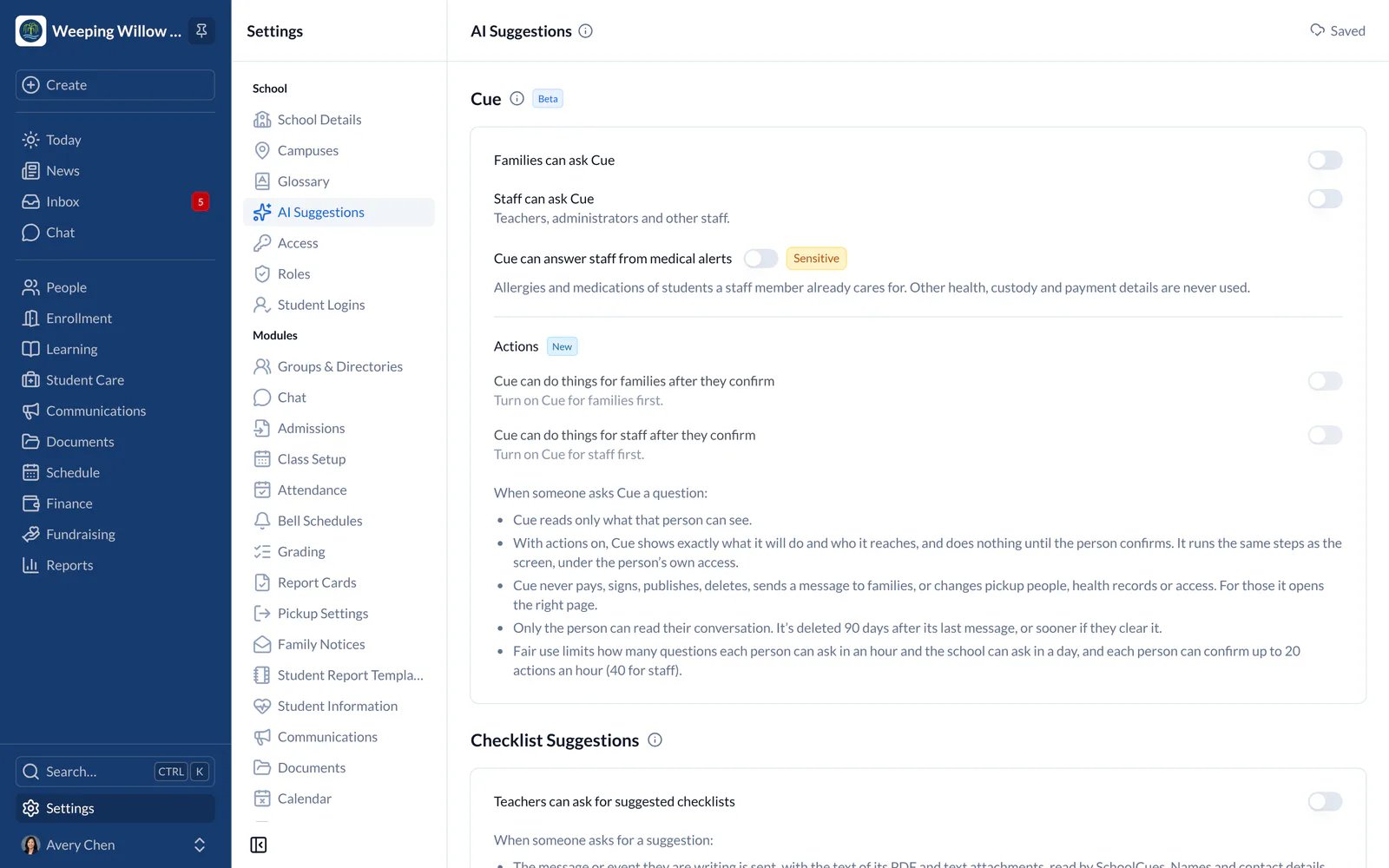
- Choose Settings, then AI Suggestions.
- Under Cue, turn on Families can ask Cue, Staff can ask Cue, or both.
- To let Cue answer staff about the allergies and medications of students they teach, also turn on Cue can answer staff from medical alerts.
- To let Cue do a few everyday things once people confirm them, such as reporting an absence or taking attendance, turn on the switches under Actions.
- Choose Save. Cue appears first in Chat for the people you chose.
What to Know
- Cue answers only from what each person can already see. With Actions on, it does only what the person confirms on a card, under their own access, and never pays, signs, publishes, deletes or messages families.
- Names and contact details are replaced before a question reaches the AI, and put back in the answer.
- Only the person can read their conversation, and it’s deleted 90 days after their last question.
- Fair use limits how many questions each person can ask in an hour and the school can ask in a day.